🤖Have you ever tried Chat.M5Stack.com before asking??😎
  • Custom blocks - require manual upload of python file?

    2
    0 Votes
    2 Posts
    811 Views
    M
    As far as I know, UIFlow2 does not automatically upload Python files in “Project Files” when importing a custom block from .m5b2. Manual uploading is still required to get blocks working on the device. To reduce this step for students, consider writing a block or script that automatically uploads the necessary Python files.
  • SD Card wont init or do anything

    4
    0 Votes
    4 Posts
    2k Views
    M
    Thank you so much for posting this. This works perfectly for my M5 Paper as well (changing out the hardware numbers as needed). I was able to write some custom blocks based on this. <3
  • How to set MTU for BLEUARTClient

    4
    0 Votes
    4 Posts
    944 Views
    M
    After many try and more than many errors .. I´m able to reveive 256 bytes instead of 20 .. but in these 256 bytes are only 20 byte long pieces of the original message. Send thee lines like "ab<30 characters long>/r/n" Receive 60 bytes like "ab..<only first 20 bytes>ab..<only first 20 bytes>ab..<only first 20 bytes>" And my Smartphone receives the full sent characters seperated like "ab<30 characters long>/r/n", "ab<30 characters long>/r/n", "ab<30 characters long>/r/n" I ended now up with chunking my message into 20 byte pieces before sending and putting the message together after receiving.
  • Can I send any CC values with Midi unit/Core3s/UIflow 2.0?

    2
    0 Votes
    2 Posts
    705 Views
    Y
    @kcuk220 No dumb questions at all! To send Portamento Time (CC 5) with your M5Stack Core3S and MIDI Unit in UIFlow 2.0, you'll need to use the cmd_write method to send raw MIDI control change messages. Here's how: Step 1: Understand the MIDI CC Message Structure Portamento Time (CC 5) uses this MIDI message format:Bn 05h cc Bn: Status byte (B = Control Change, n = MIDI channel 0-15 → hex 0-F) 05h: CC number (5 for Portamento Time) cc: Value (0-127, where 0 = fastest portamento, 127 = slowest) Step 2: UIFlow 2.0 Implementation Initialize the MIDI Unit (if not already done):Use the "MIDI Unit" block under "Units" to set up the MIDI Unit with your UART port (e.g., Port A). Send Portamento CC Message using cmd_write:The cmd_write method accepts a list of MIDI bytes. For Portamento Time on Channel 1 (hex 0), with a value of 64 (medium speed): Bytes = [0xB0, 0x05, 0x40] 0xB0 = Channel 1 (0xBn where n=0), Control Change 0x05 = CC number 5 (Portamento Time) 0x40 = Value 64 (hex for 64) Example Code (Blockly & Python) Blockly: Add a "MIDI Unit" → "cmd_write" block. Set the input to [176, 5, 64] (decimal equivalent of 0xB0, 0x05, 0x40). Python (Advanced): from m5stack import * from m5ui import * from uiflow import * import unit Initialize MIDI Unit (adjust port if needed) midi = unit.get(unit.MIDI, unit.PORTA) Send Portamento Time (CC 5) on Channel 1, value 64 midi.cmd_write([0xB0, 0x05, 0x40]) # B0=Ch1, 05=CC5, 40=64 Key Notes: Channel Adjustment: Change the first byte to target different channels. For example: Channel 2 → 0xB1 (hex) or 177 (decimal) Channel 10 (drums) → 0xB9 (hex) or 185 (decimal). Value Range: Use 0-127 for cc (e.g., 0x00 = 0 = fastest, 0x7F = 127 = slowest). Verification Test with a MIDI monitor (e.g., MIDI-OX on Windows, MIDI Monitor on macOS) to confirm the CC 5 message is received. Most synths require Portamento to be enabled (via CC 65, "Portamento On/Off") before CC 5 takes effect. https://chat.m5stack.com/

  • Tab5 screen don't display anything with UiFlow 2.0

    10
    0 Votes
    10 Posts
    3k Views
    C
    This issue was solved with UiFlow2.0 v2.3.8. Tab5 can display all things I want to show.
  • This topic is deleted!

    1
    0 Votes
    1 Posts
    1 Views
    No one has replied
  • Cannot get StamPLC to run main.py

    4
    0 Votes
    4 Posts
    1k Views
    T
    Thank you for responding. Even when I use the download button, it doesn't make a difference. The code will only run until reboot. I can only get it to work once. I added a couple of images to the screen so that I can move them around in between attempts, and the images display properly. They even move when I move them and reload, indicating the program is in fact being downloaded. However, no matter how I upload to device, only works until reboot. I should also add that it seems like the relay isn't being initialized. When the program works, the relay clicks when the program starts, and the serial monitor shows the relay open and close commands as they happen. Then on reboot, the relay never clicks, and I see nothing in serial monitor indicating anything is happening at all. But the images are showing in the proper places.
  • I2C OSError [ERRNO 116] ETIMEDOUT

    1
    0 Votes
    1 Posts
    310 Views
    No one has replied
  • Cannot unbound M5SticC plus 2

    5
    0 Votes
    5 Posts
    1k Views
    M
    Today the support unbind my device and now I can correctly see it under "My devices" in UIFlow2. The next time I will be much careful before deleting my account. Have a nice day!
  • Cannot delete /replace python file in the filesystem

    3
    0 Votes
    3 Posts
    866 Views
    T
    @robski I wanted to create a simple flow for pupils that does not require more tools. it should be possible with the built in file manager, it seems like there is a bug , just wanted to know if there is a workaround
  • Custom blocks and Remote+

    6
    0 Votes
    6 Posts
    5k Views
    B
    @dlhawley I never tried making custom blocks, but i assume that after saving them you have to add them to your custom block library using the big + button. [image: 1761688906743-a9dbe015-f627-46be-8100-59832f99e93f-image.png] You can ask one of the AI chats, I use Gemini, in most cases it knows UiFlow2 pretty well.
  • Controlling built-in USB ports in TAB5

    1
    0 Votes
    1 Posts
    448 Views
    No one has replied
  • ImportError: no module named 'm5ui'

    6
    0 Votes
    6 Posts
    2k Views
    robskiR
    @h12616 you are correct not all M5 devices support M5UI - its not me btw its @kirill271099
  • UiFlow 2.3.6 can't send file to M5Stick

    2
    1 Votes
    2 Posts
    698 Views
    M
    Doesn't work for me either, the web burner just returns a blank screen. I selected main.py PaperS3 V. 2.3.6
  • Newbie failing on the first clock + battery with PaperS3

    2
    0 Votes
    2 Posts
    674 Views
    robskiR
    @literakl so are you able to display current time and battery level at all...forget about sleep option for now
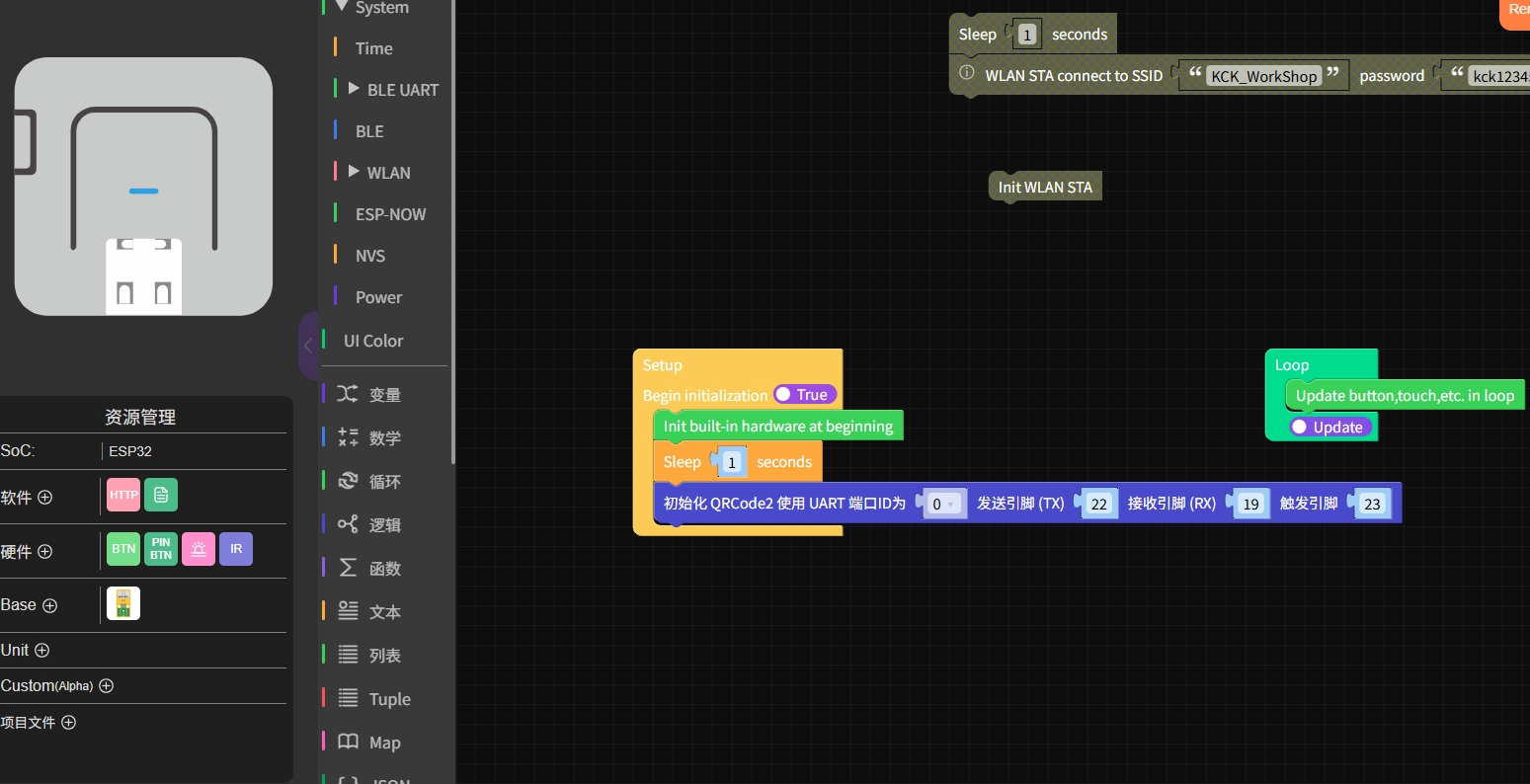
  • Why can't the ATOM in the picture use the QR code correctly?

    1
    1
    0 Votes
    1 Posts
    678 Views
    No one has replied
  • Module GPS

    8
    2
    0 Votes
    8 Posts
    4k Views
    Bat21B
    @Bat21 This is the proyect. https://uiflow2.m5stack.com/?pkey=a4a84f44144c4c8dbe372b983a04ada4
  • i2c driver install error

    15
    1
    0 Votes
    15 Posts
    15k Views
    robskiR
    @mearsuit i see this error from some time but projects are working ok
  • Display not refreshing within loops

    4
    0 Votes
    4 Posts
    2k Views
    B
    @felmue Thanks. I thought of doing this, but it is a kind of a patch, not a fix. The whole advantage of having callbacks functions that perform distinct operations outside of the main loop is almost eliminated by doing this. The main loop need to be as clean as possible, otherwise very quickly it becomes very long and messy. Functions outside the main loop should be working properly, unless there is a fundamental reason why they cant access the display libraries properly. It looks like a fundamental bug in how the firmware on the TAB5 treats the external functions.
  • UI Flow 2.0 Switching back from main.py to the config&launch app

    3
    0 Votes
    3 Posts
    3k Views
    Y
    @sistar_hh and every one who reads this in the future ))) If you set in your program: Boot option set to 'Run main.py directly' set_boot_option(0) it will be executed by default on boot. But! If you press G0 (BtnA) button as soon as the device is powered on, then the default UIFlow2 app will be started. I've found it in https://github.com/m5stack/uiflow-micropython/blob/master/m5stack/fs/user/boot.py """ boot_option: 0 -> Run main.py directly 1 -> Show startup menu and network setup 2 -> Only network setup Quick reference: when use uiflow2.m5stack.com website, click RUN button to run workspace code, boot_option won't change, if you click DOWNLOAD button to download workspace code to device, boot_option will change to 2, it means after download code done, device will auto reboot and won't show startup menu, only do the network connect, but after network connect success, you can still download or run workspace code. If you don't want do anything after boot, you can delete this whole file. If you want show startup menu again, you can hold BtnA(most device) and click reset button or repower device until show the startup menu(for those devices with screens, and this is a temporary method and may change in the future), after that the boot_option will change to 1, so next time still will show the startup menu. BTW, the network connection time has a default timeout (60s), you can modify the following definition to change this default value. """